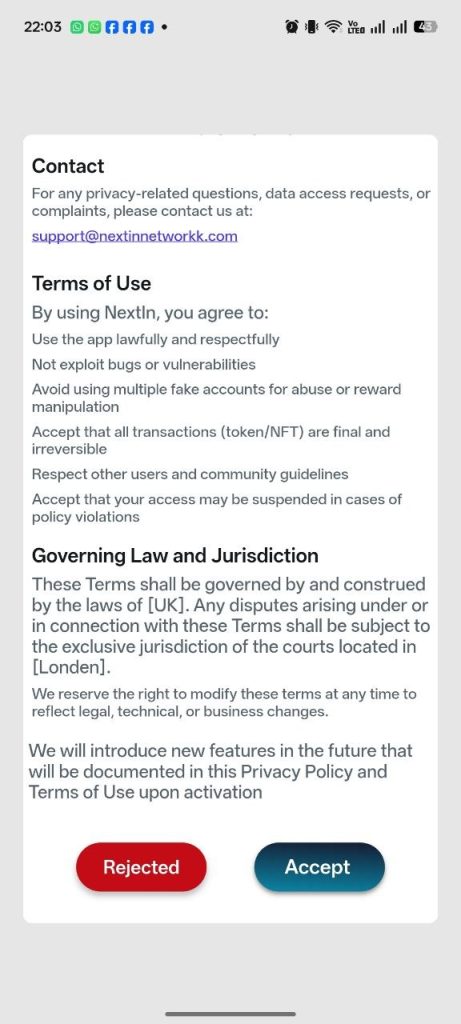
1. First step: After downloading the app, agree to our privacy policy (it’s for your protection).
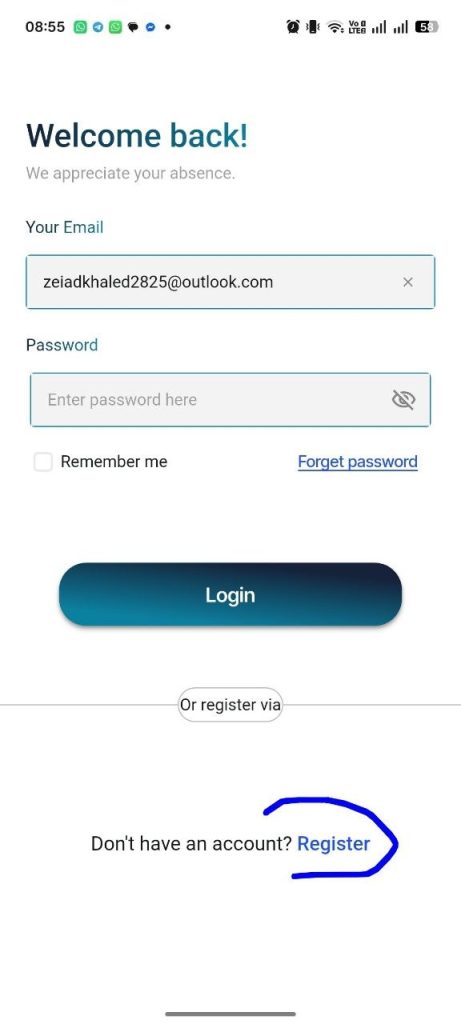
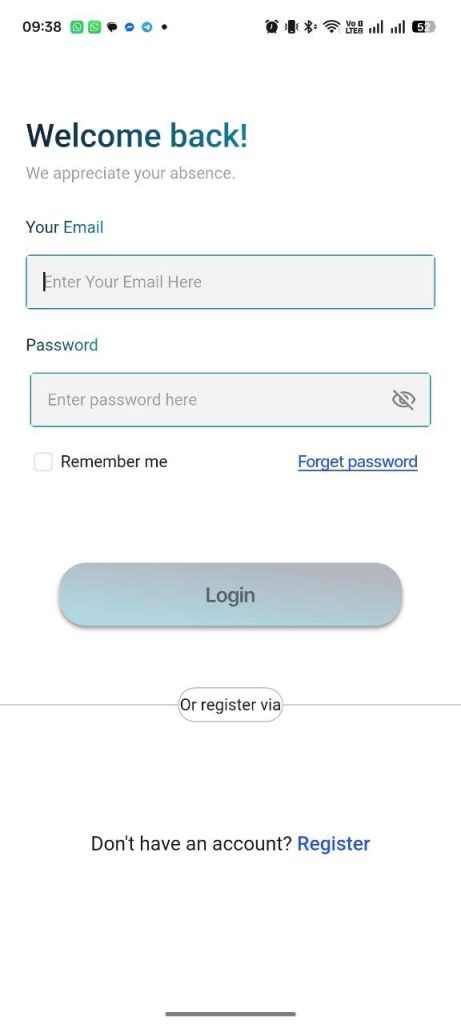
2. The second step: Create an account by clicking on the word “Register” as shown in the picture.
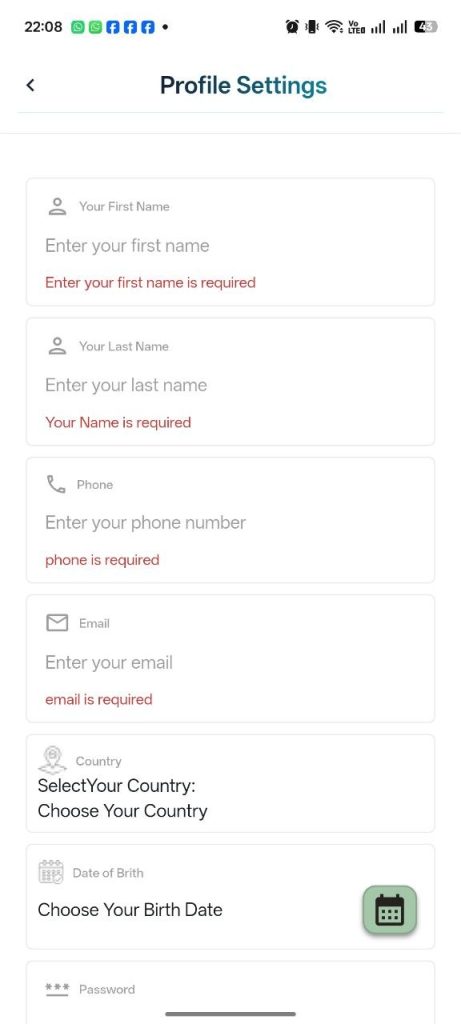
Step 3: Enter your details
After accessing the registration page, fill in the required information on the page. Once completed, your electronic wallet and account within the application will be created.
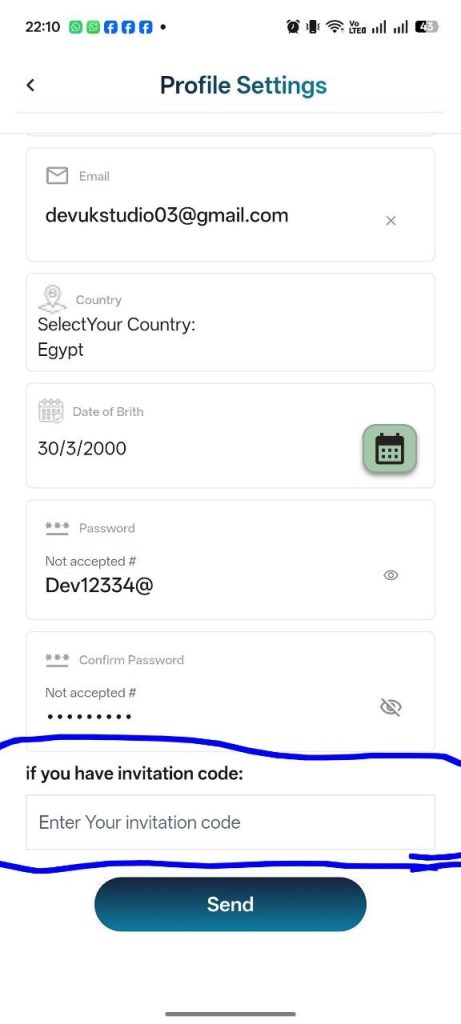
Invitation Code (Optional)
If you have an invitation code or downloaded the app through a referral link, please enter it here (as shown in the image). The person who shared the invitation will receive reward tokens for referring you. You can also earn rewards by sharing the app and inviting your friends and followers using your own invitation code.
Step 4: Account Access
After creating your account, you will be redirected to the login page. Use your credentials to sign in, and be sure to select “Remember Me” to enable biometric login (fingerprint or facial recognition), depending on whether you are using an Android or iPhone device.
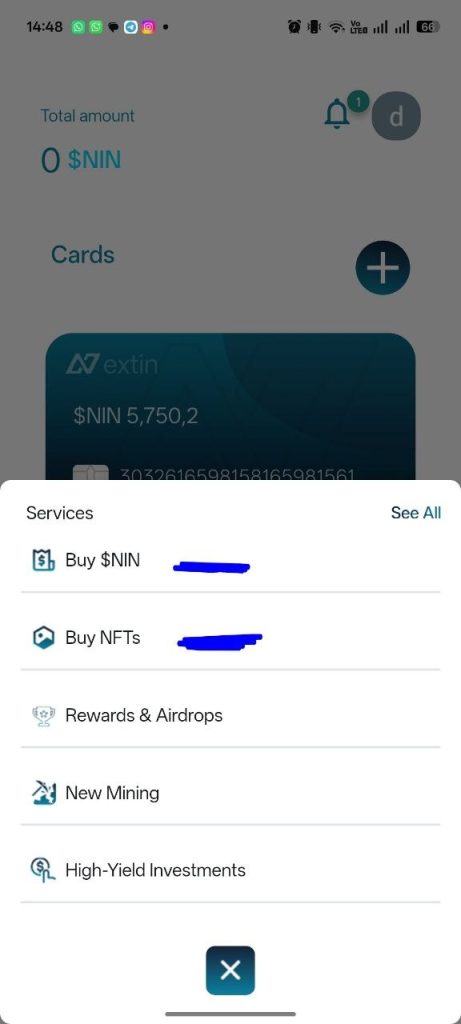
Step 5: Access the Main Action Button
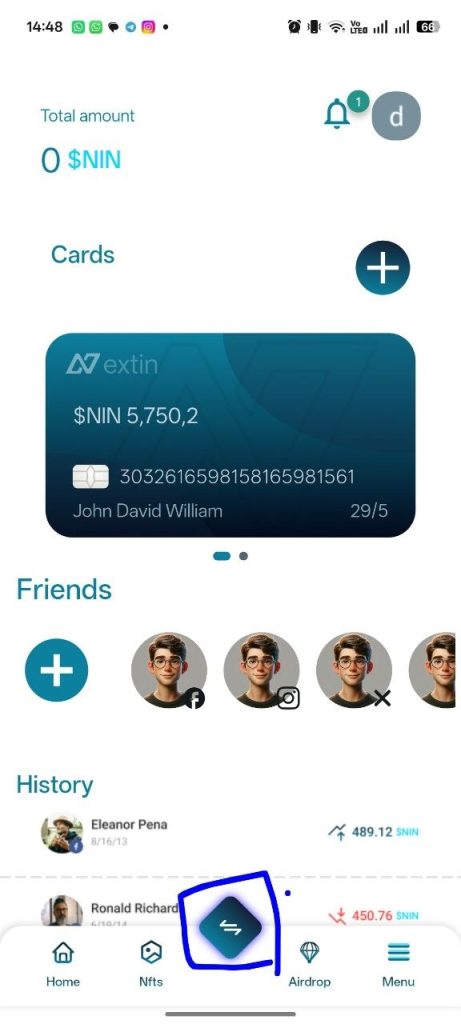
On the home page, tap the icon located in the center of the bottom navigation bar, as shown in the image.
Step 6: Choose Your Purchase Option
A pop-up window will appear—select what you would like to purchase and proceed by clicking on your preferred option, whether it is $NIN tokens or Buy NFTs.
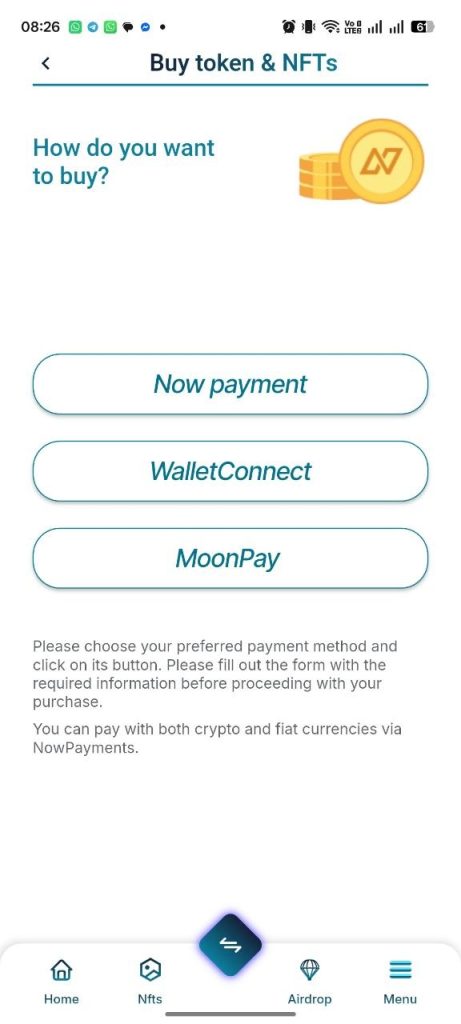
Step 7: Select Your Payment Method
If you choose to purchase $NIN tokens, you will be directed to a page displaying the available payment methods. Select the option that suits you best, as shown in the image—such as NowPayment, or WalletConnect… MoonPay will be activated soon.
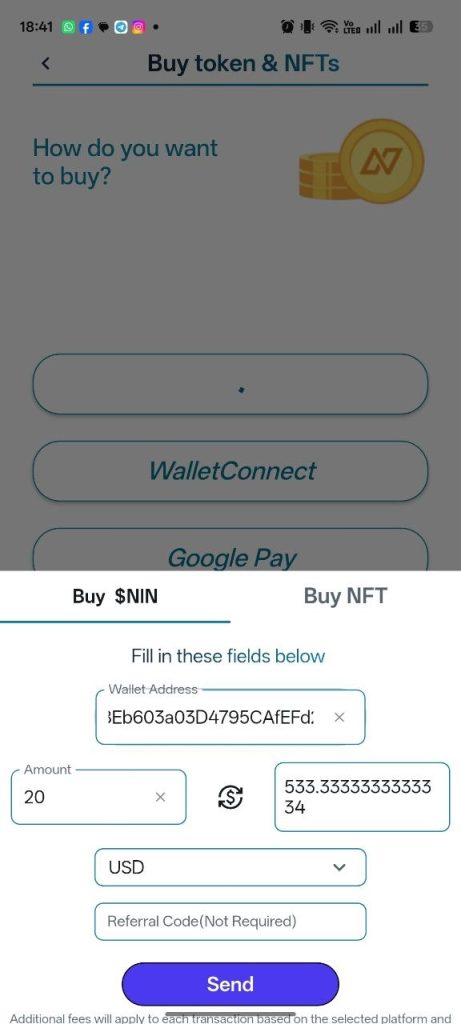
Step 8: Complete Your Purchase via Now Payment
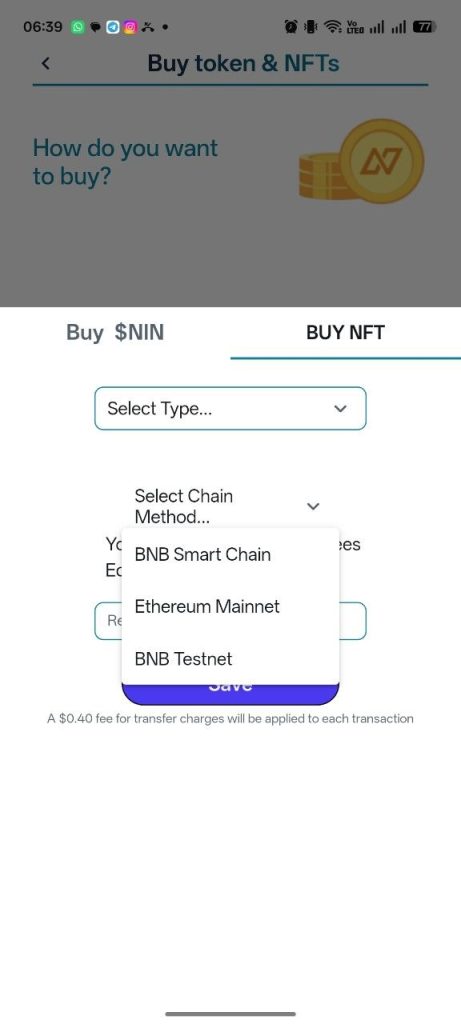
If you select Now Payment and click the button, a pop-up window will appear with two sections. Choose the section based on what you want to purchase—either $NIN tokens or NFTs.
You will be required to:
Enter your digital wallet address
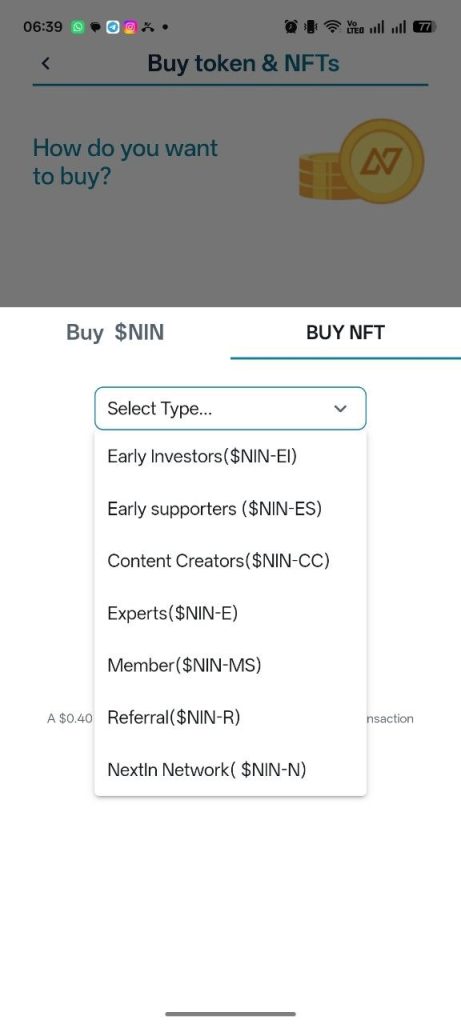
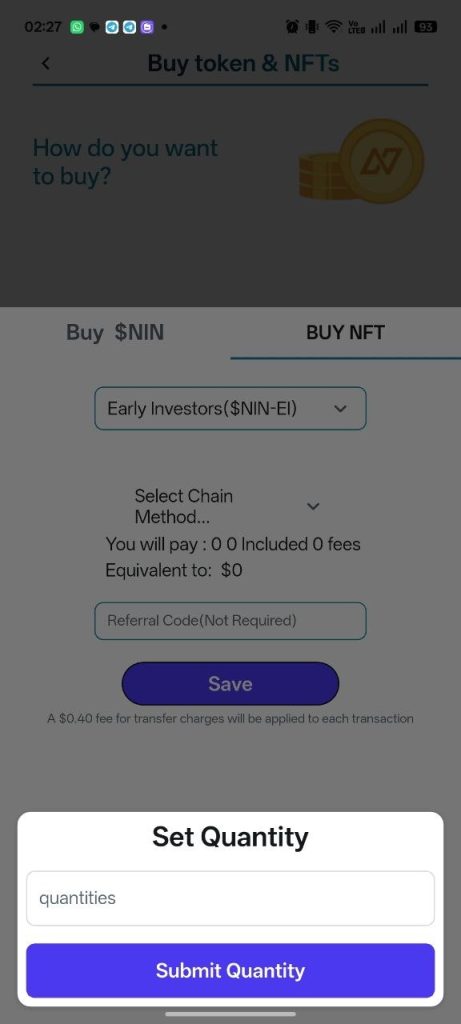
Specify the amount you wish to purchase, or select the type and quantity of NFTs
Choose the currency you will use for payment
Enter a referral code (if available). If you were referred by someone, adding their code will grant them rewards and points
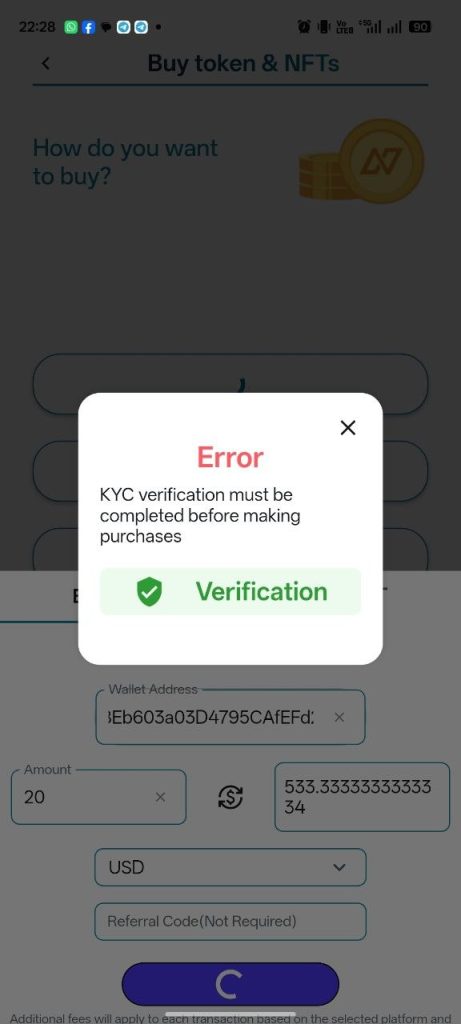
Make sure all details are entered correctly before proceeding with the payment.
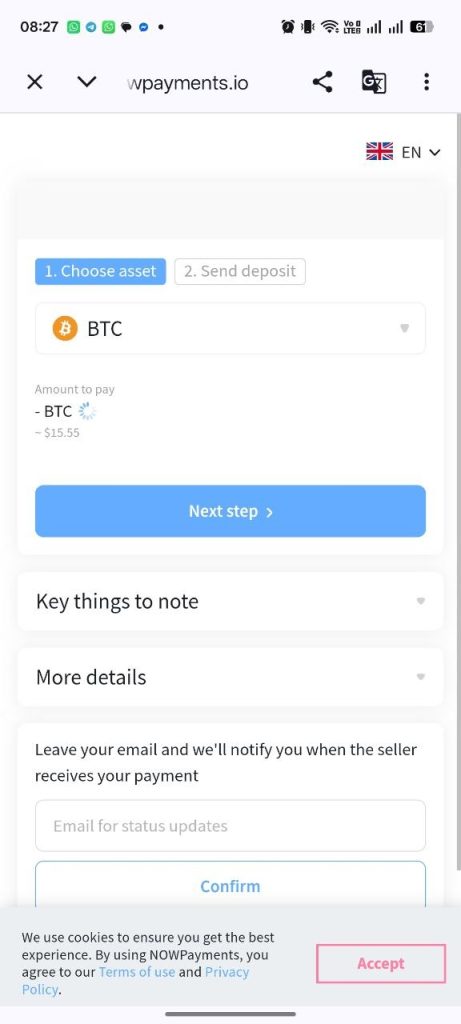
After completing the previous step, click on the drop-down menu labeled “Bitcoin” in the image.
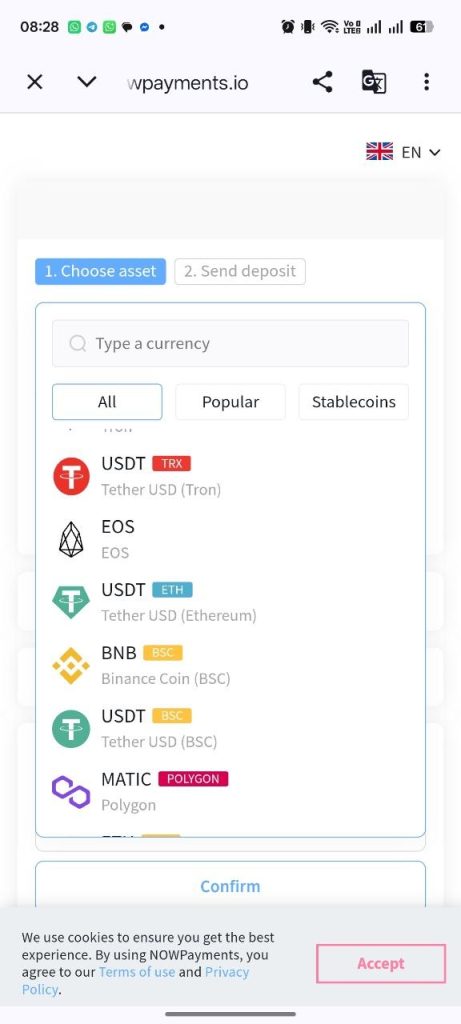
After clicking on the menu, select the currency you wish to purchase with from among the available currencies, as shown in the picture.
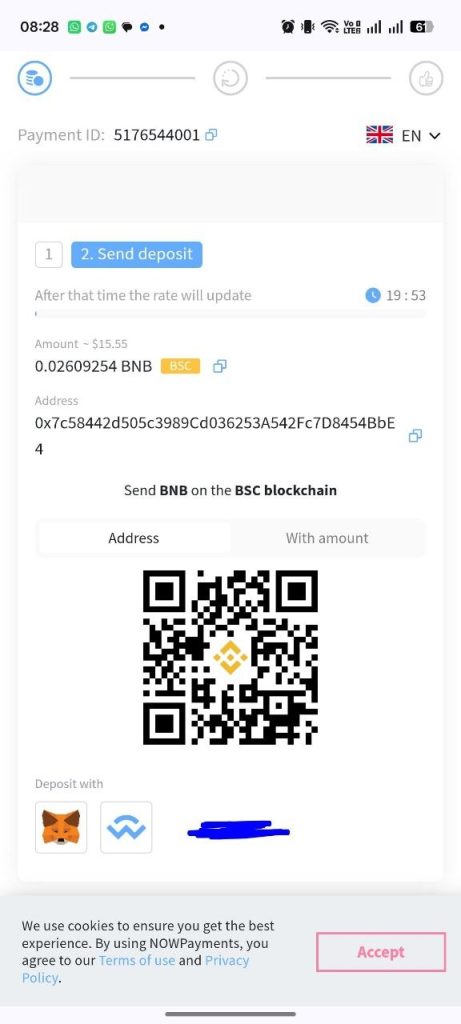
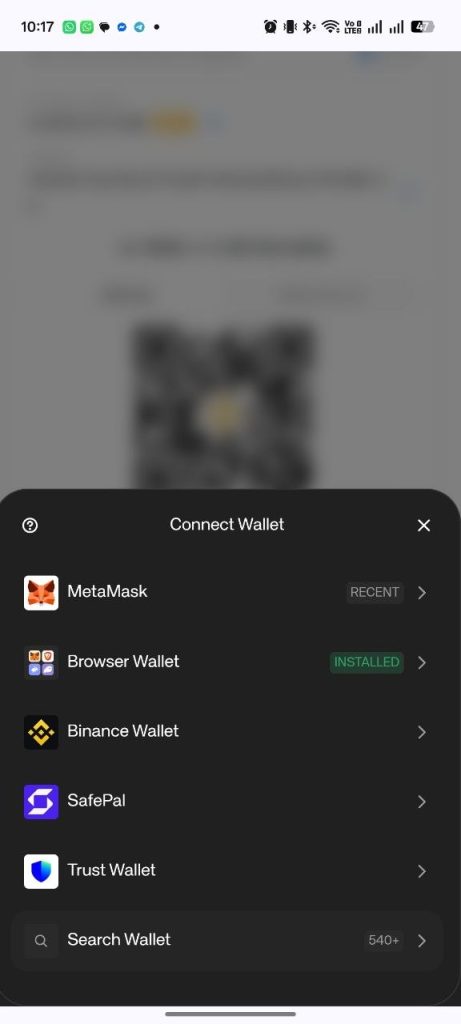
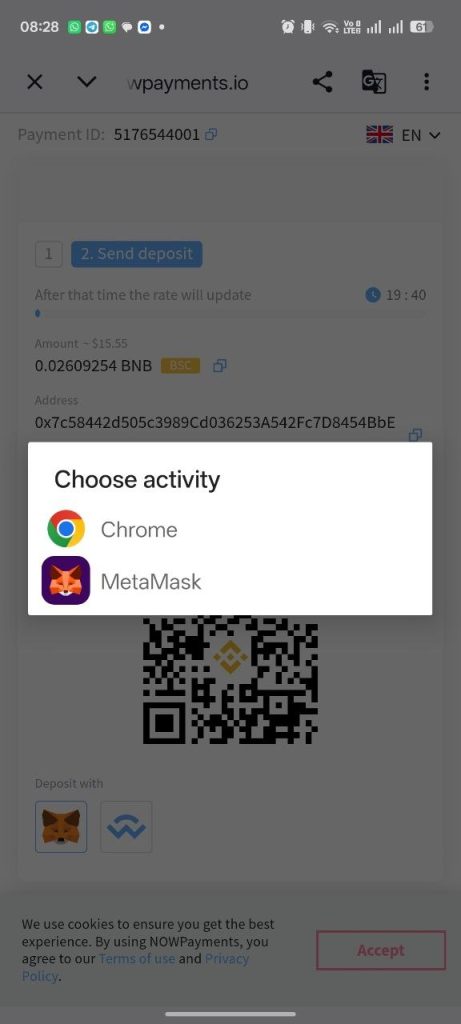
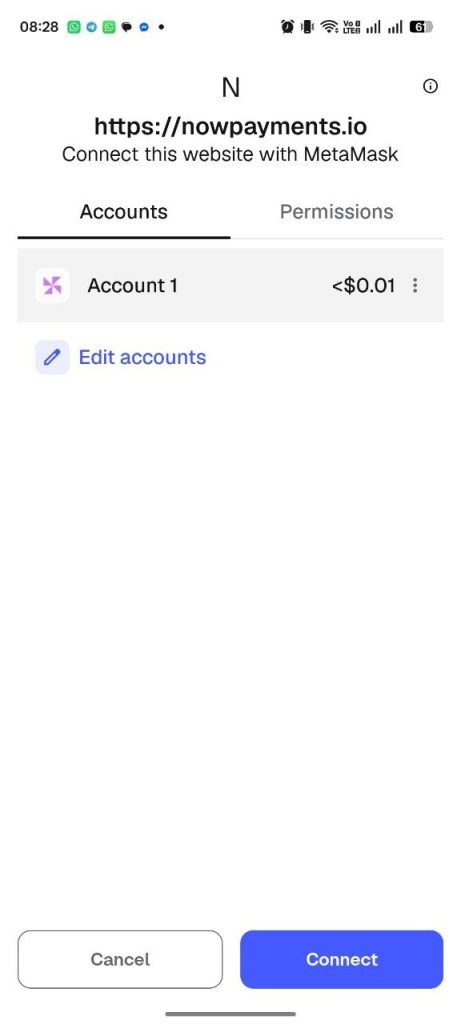
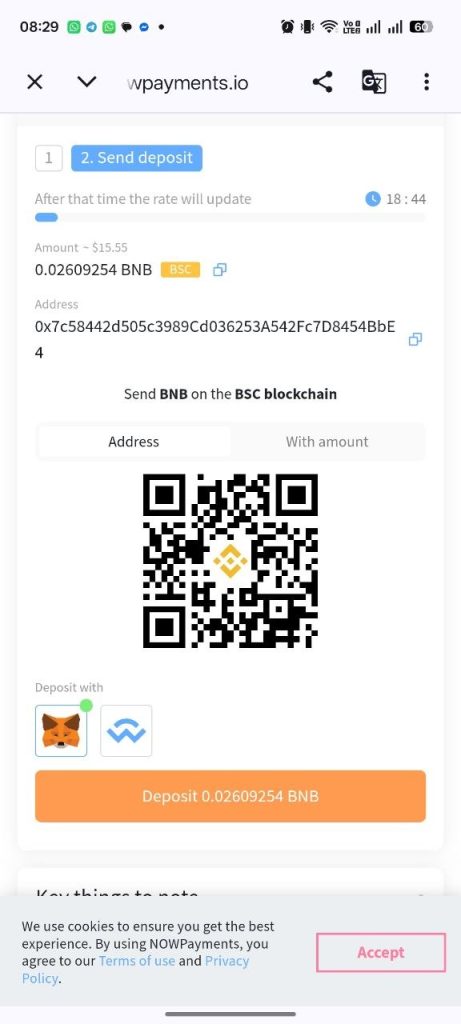
After that, you will be taken to the next step where you can choose the wallet, whether MetaMask or any other wallet, via the walletConacat, as shown in the picture and the next picture as well.
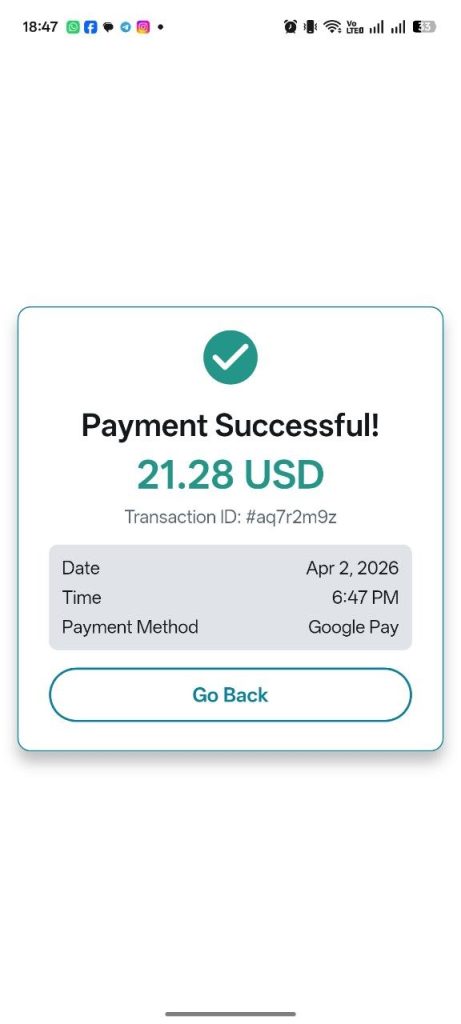
After selecting your wallet, link it, then return to the payment page and complete the payment process. You will then be redirected back to the application, where a page will display the status of your payment. You can also return to the app by clicking the “Go Back” button.
After this step, a transaction status page will be displayed. You can return to the main page of the application by clicking the “Go Back” button.
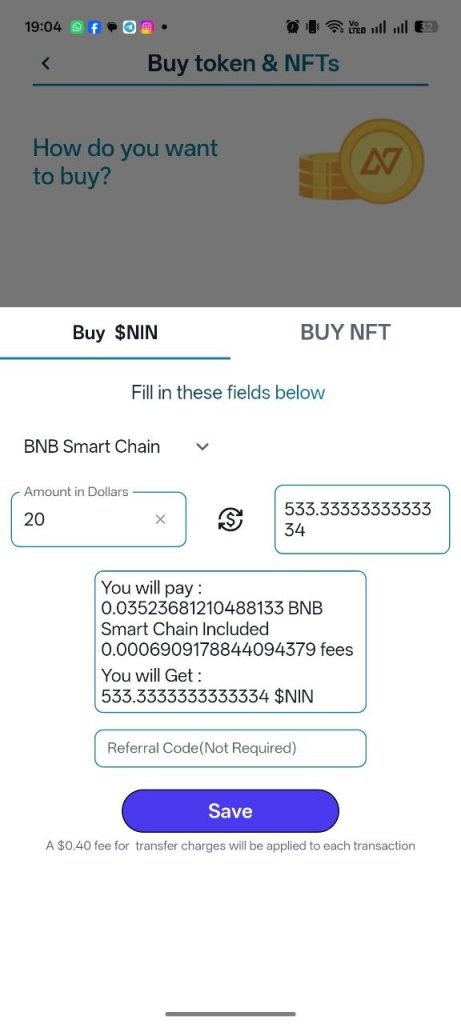
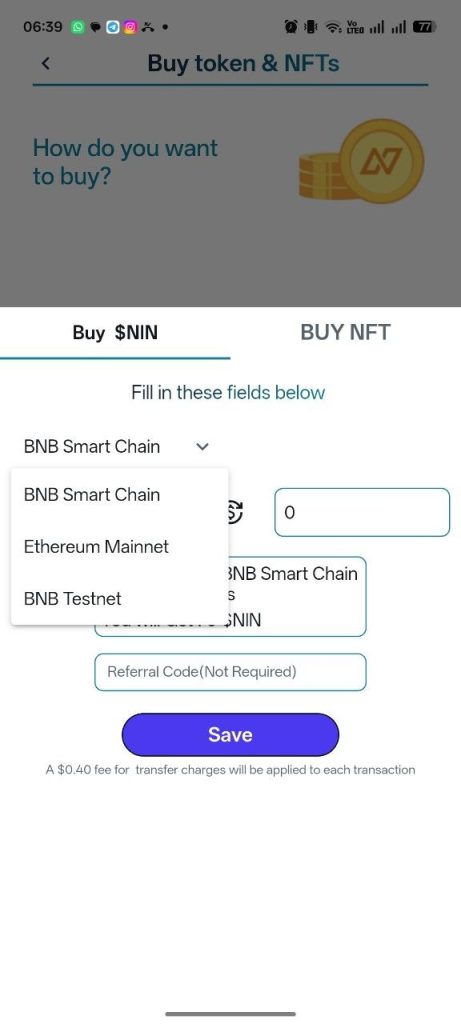
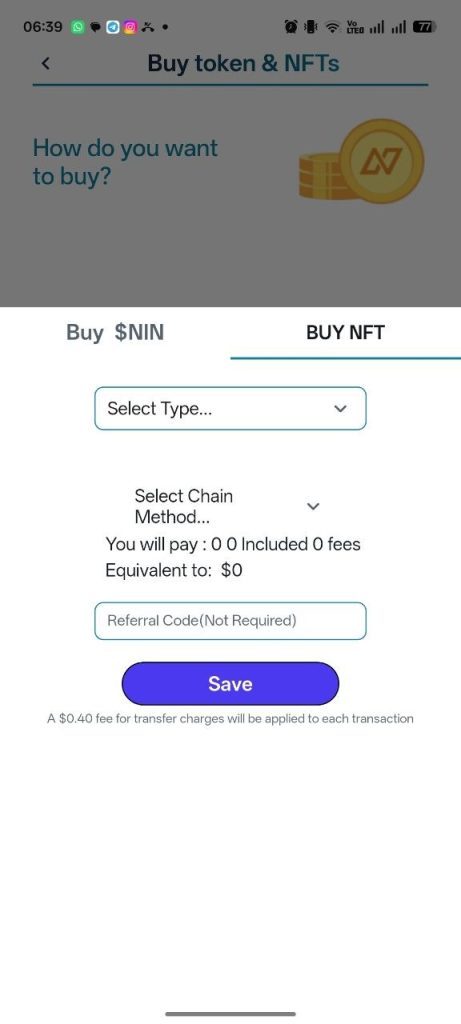
If you choose to pay using WalletConnect, first complete the pop-up by selecting the network based on the currency you wish to use, entering the investment amount, and adding a referral code if available. If you are purchasing NFTs, you will need to specify the type and quantity, and you may select multiple types. After submitting the pop-up, you will be redirected to the next page.
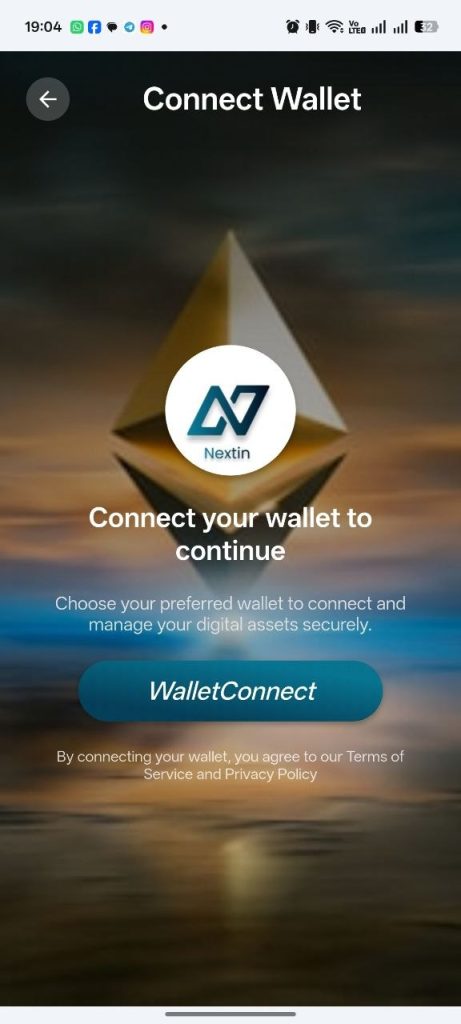
Then click the “WalletConnect” button, as shown in the image.
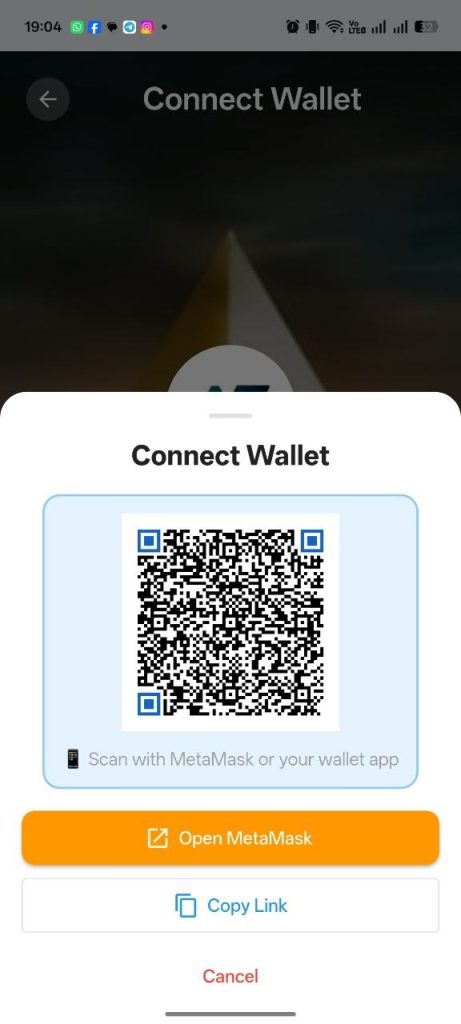
A pop-up will appear displaying all the wallets available on your device. You can choose the wallet you prefer, then click the “Open” button or the corresponding wallet icon (for example, if only MetaMask is installed, you will see “Open MetaMask”).
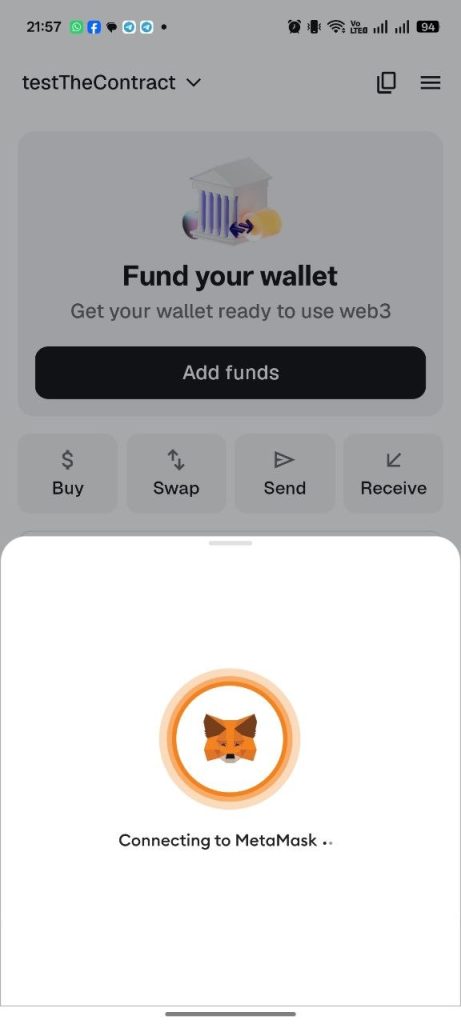
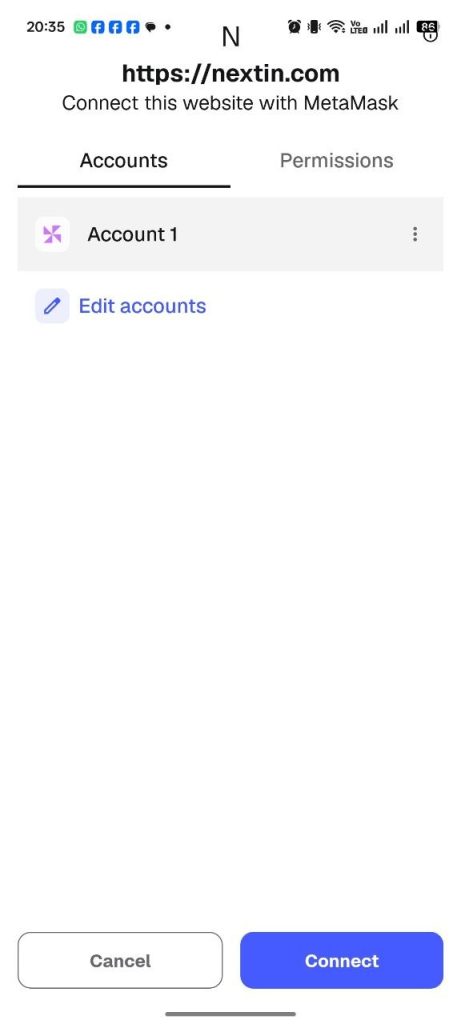
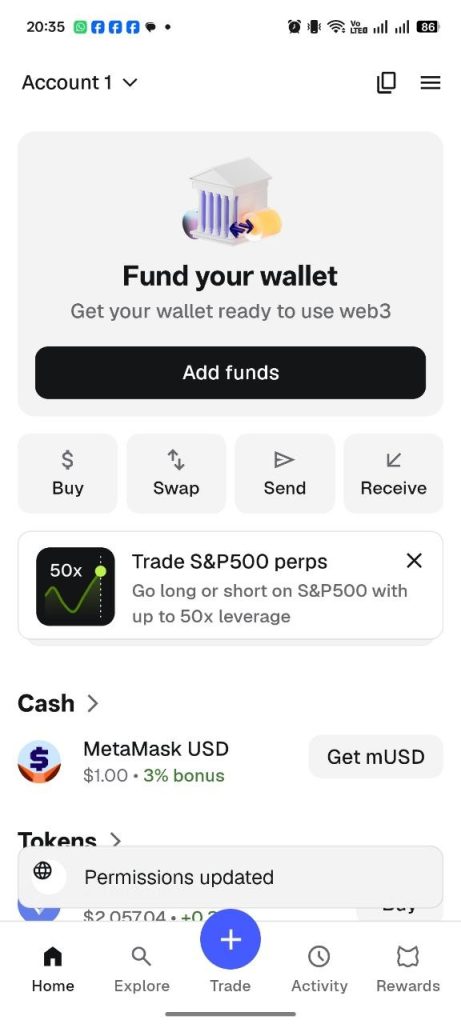
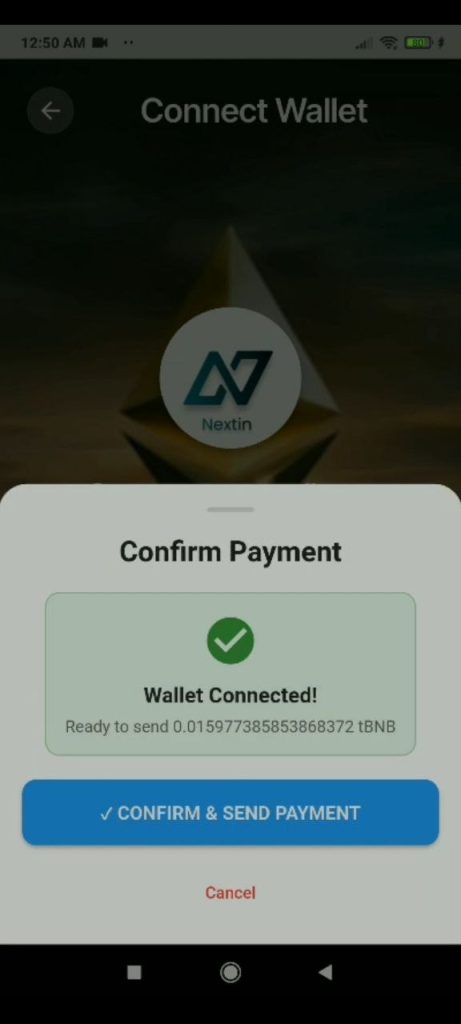
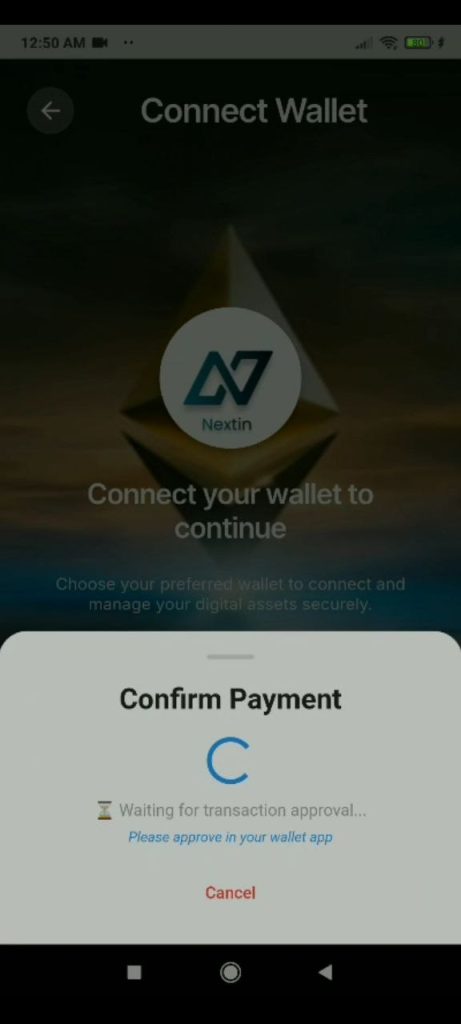
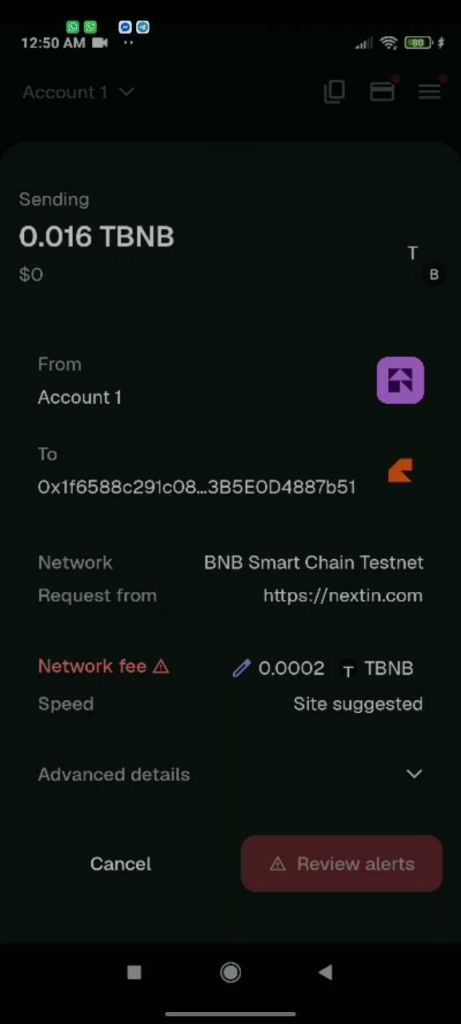
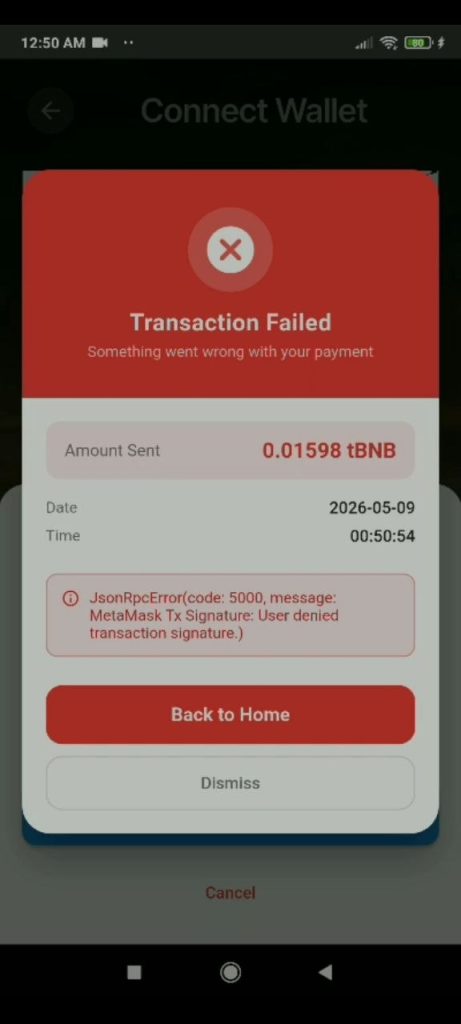
You will be redirected to the wallet application you selected in order to establish a connection between our app and your wallet account. Make sure you have sufficient funds in your wallet for the payment or investment amount you selected. Follow the steps as shown in the images. Once completed, return to our application, and you will notice that the pop-up has been updated.
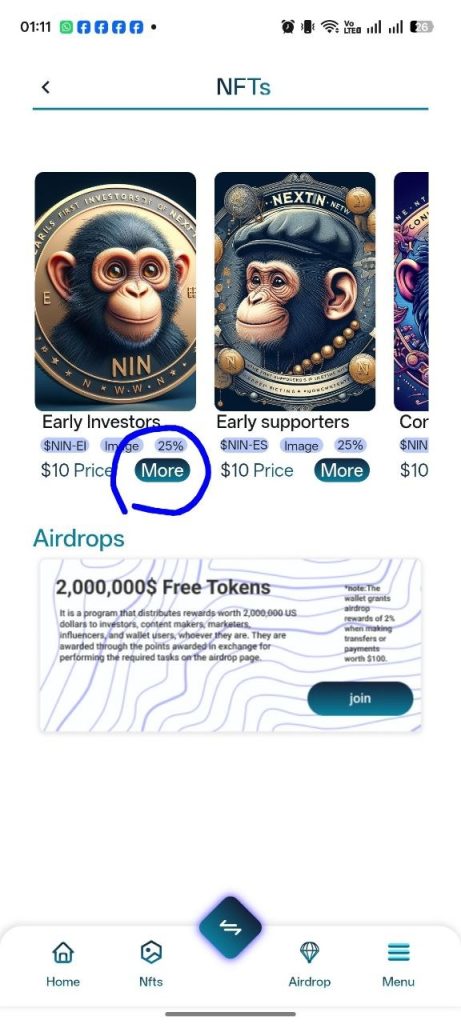
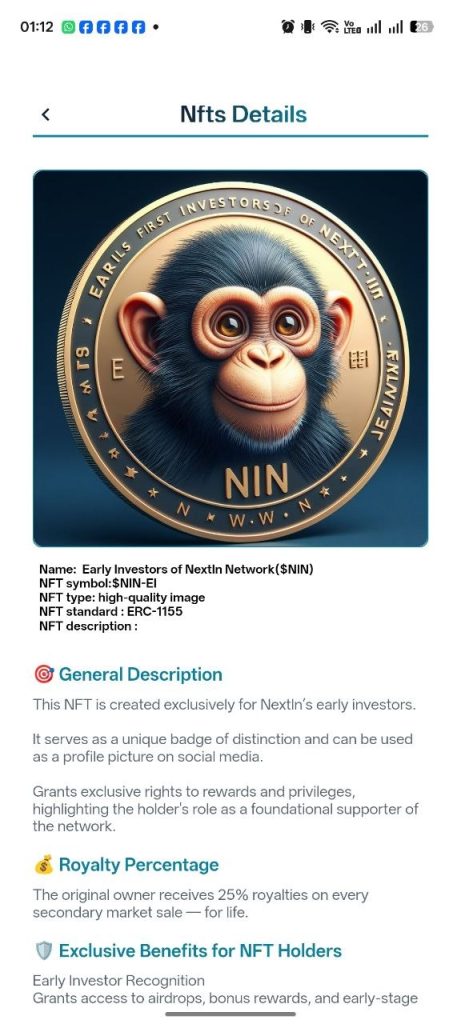
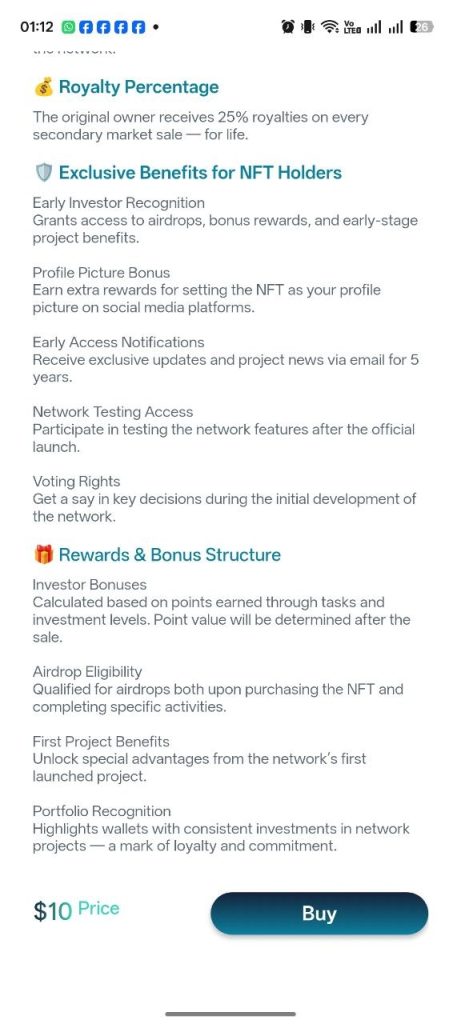
You will need to follow the same steps whether you are purchasing tokens or NFTs. However, when buying NFTs, you will need to select the types you want. You can purchase multiple types in a single transaction or choose just one type, and specify the quantity for each or select only one NFT as well.
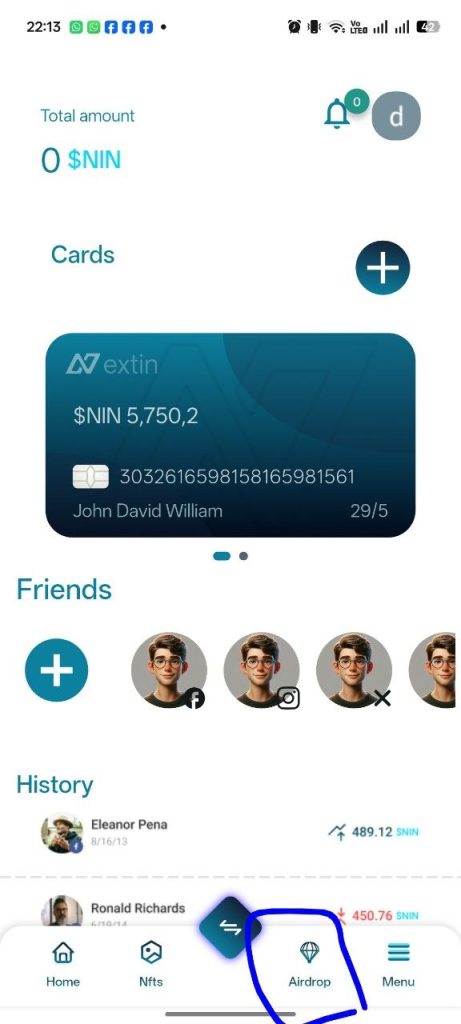
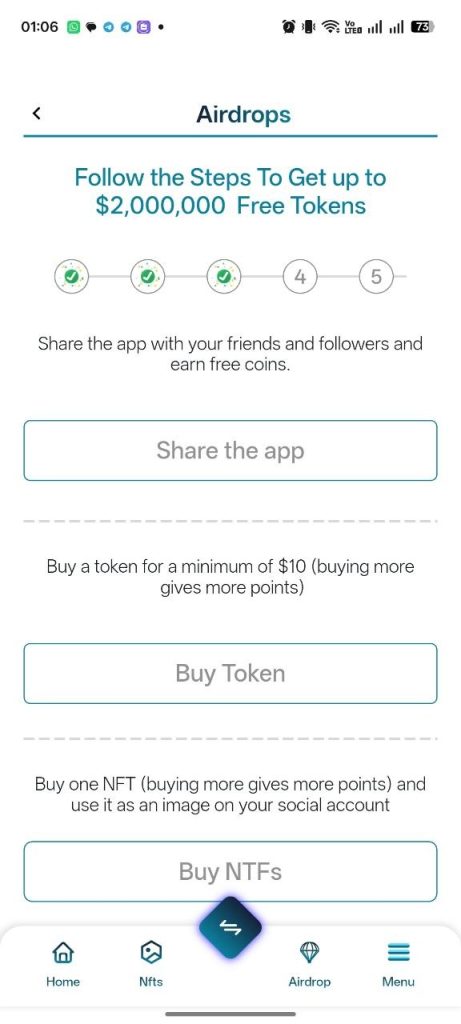
After downloading the app and earning reward points, go to the Airdrop page from the bottom navigation bar on the home screen, as shown in the image.
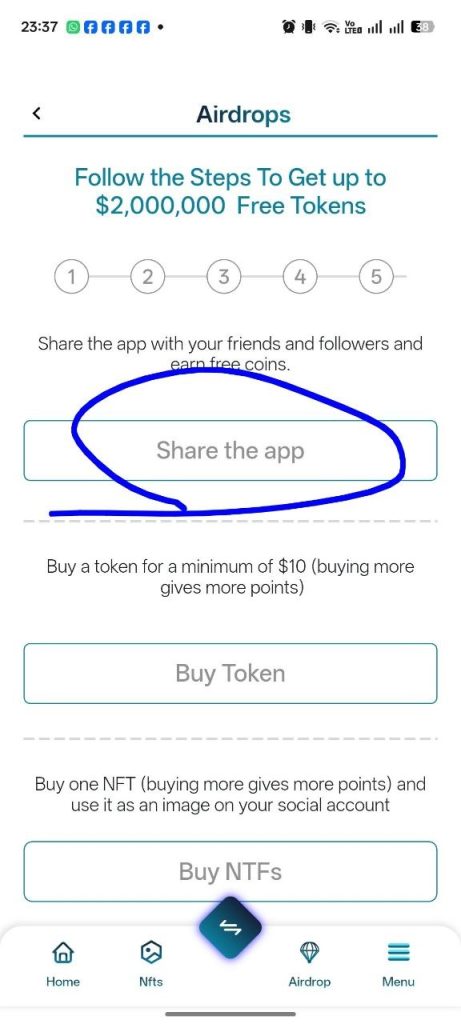
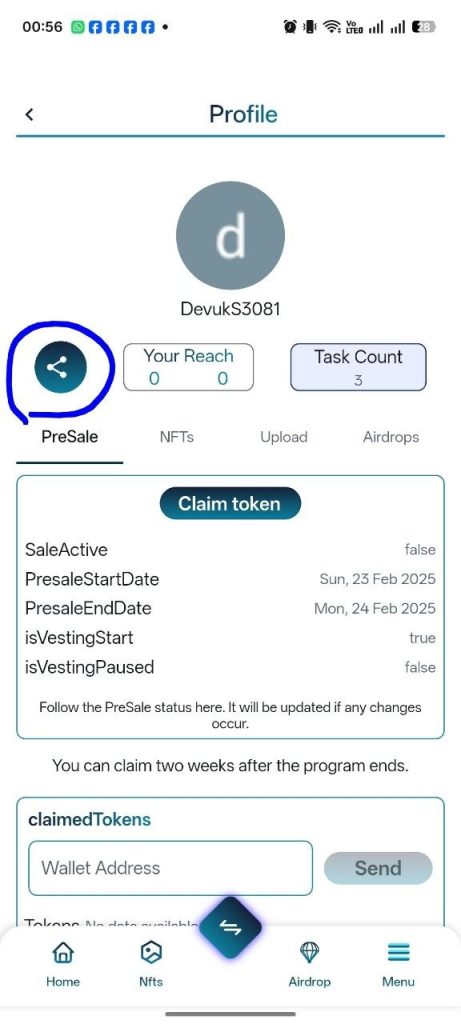
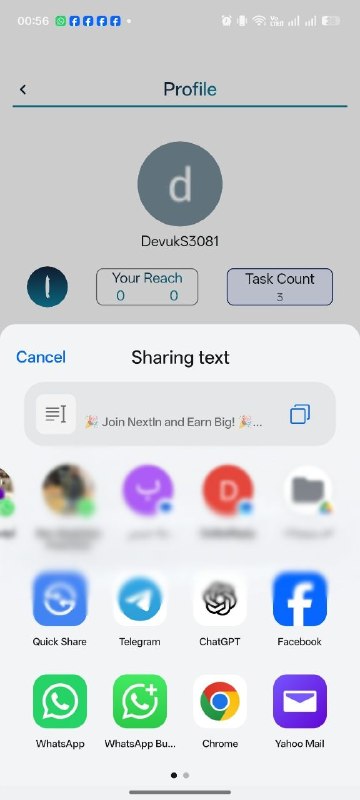
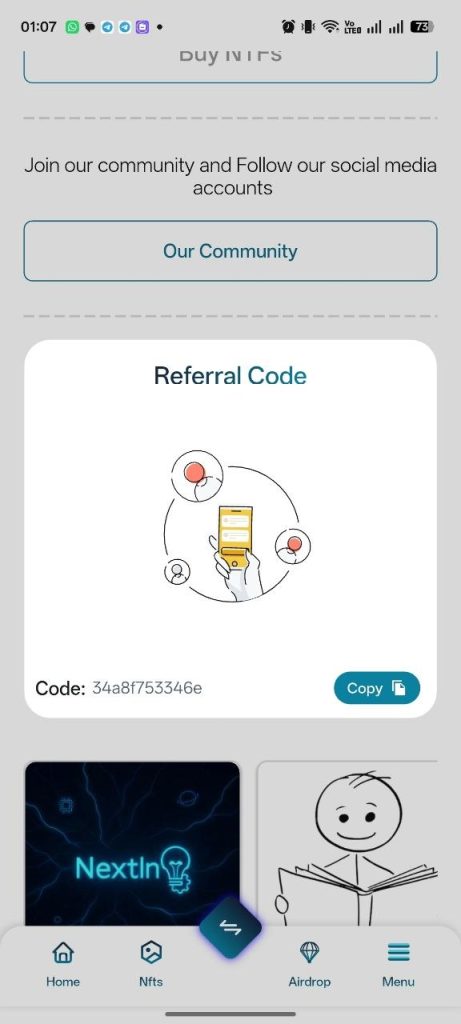
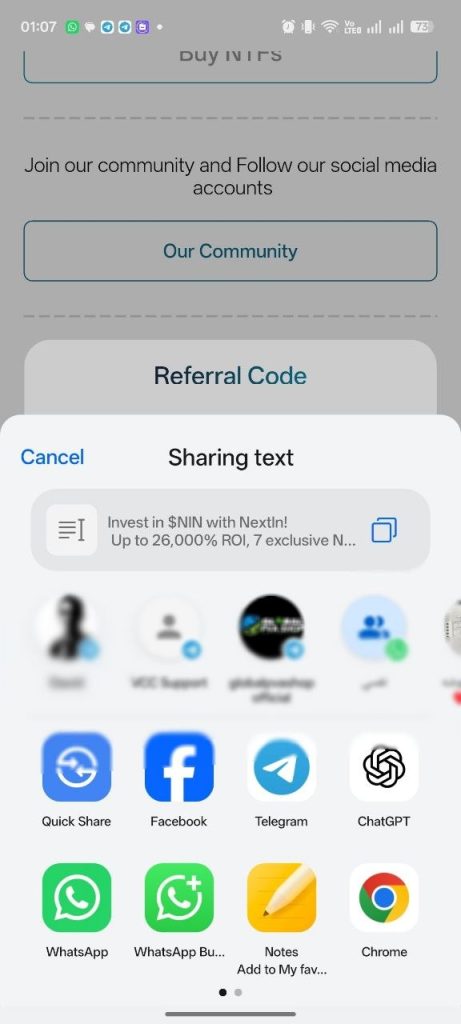
You have already started your journey by downloading our application and earning reward points for it. Now, let’s begin with the first task on the page, which is sharing our application with your friends and followers. Follow the steps shown in the images. In the final step, you can either share directly by tapping the app icon or copy the share text from the top of the pop-up and share it in your own way.
Your referral will be credited to you once the person you invited downloads the app and enters your referral code during the account creation process, as explained earlier in the account setup section.
Next Task: Purchase the Minimum Token Amount
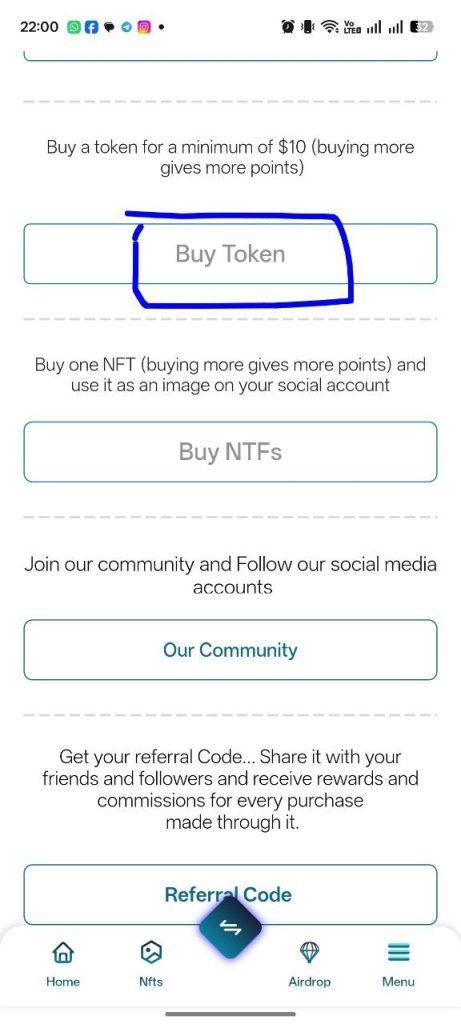
Complete your next task by purchasing the minimum required amount of our token, which is $10. Purchasing more tokens will earn you additional points and increase your rewards.
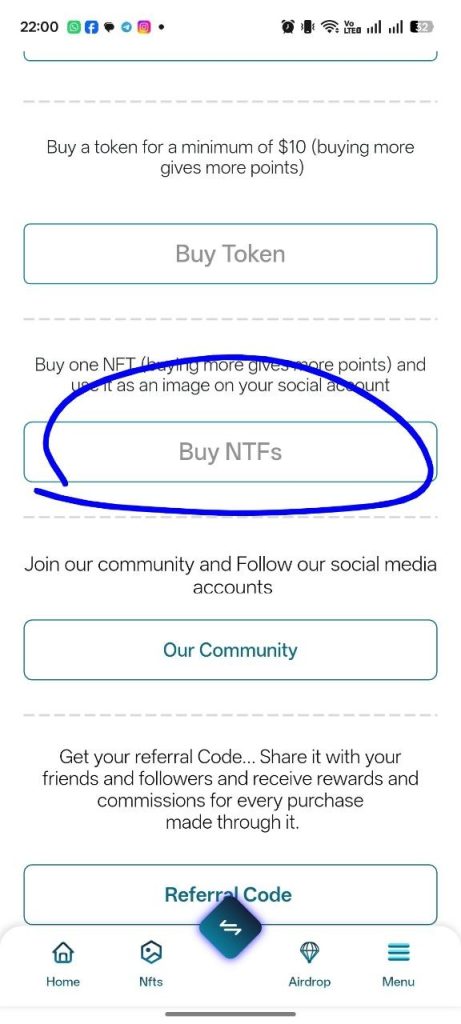
Next Task: Purchase NFTs
Complete this task by purchasing at least one NFT from any of our available NFT types. Buying more NFTs will earn you additional rewards and increase your total points.
Next Task: Follow Us on Social Media
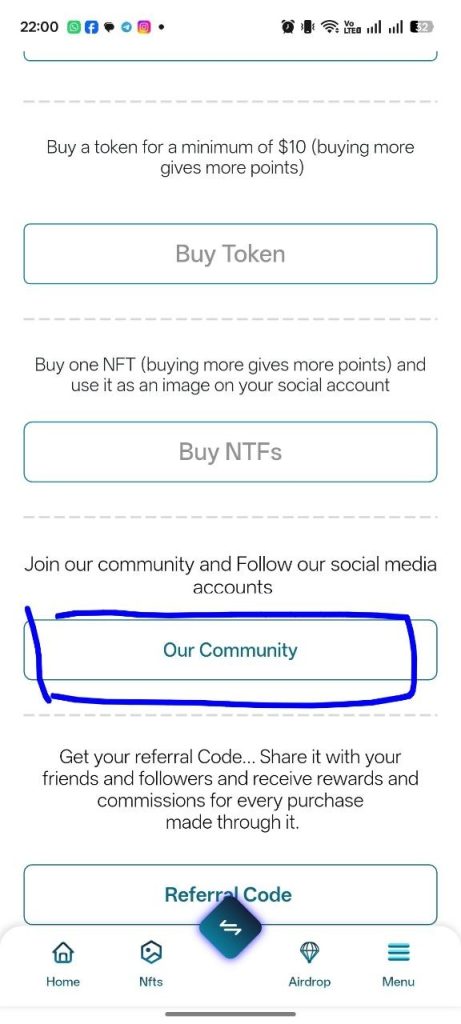
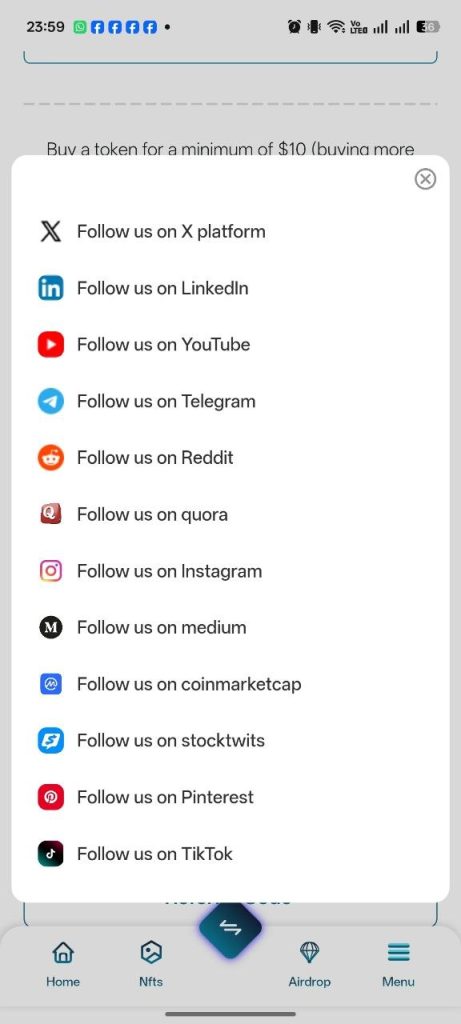
Complete this task by following our official social media accounts and joining our community. Tap the “Community” button, then a pop-up will appear. Open each of our accounts and follow them.
You must take a clear screenshot as proof of completion and submit it to the admin for review and verification. Once approved, your task will be marked as completed. Instructions for uploading the proof are provided below.
Next Task: Get Your Referral Code
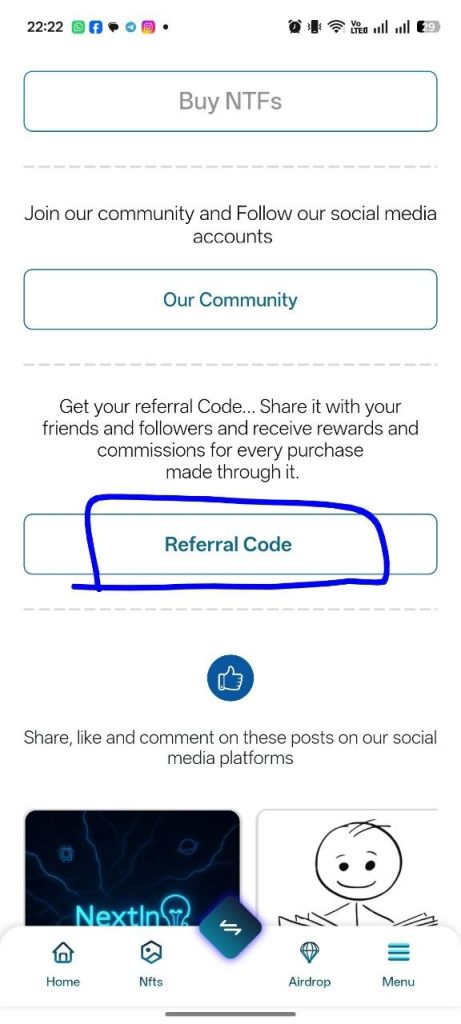
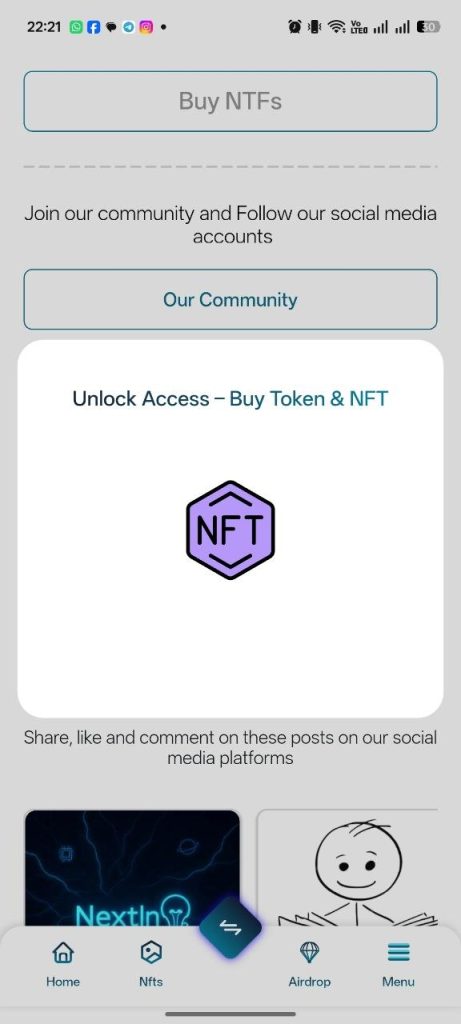
Obtain your referral code by tapping the “Referral Code” button. Please note that to unlock your referral code, you must first complete the minimum requirements by purchasing at least $10 worth of our token and buying at least one NFT from any of our available NFT types.
Once you receive your referral code, you can share it with your friends and followers and participate in our competition, as explained above. Rewards and prizes are detailed in the previous sections.
Next Task: Engage with Our Social Media Posts
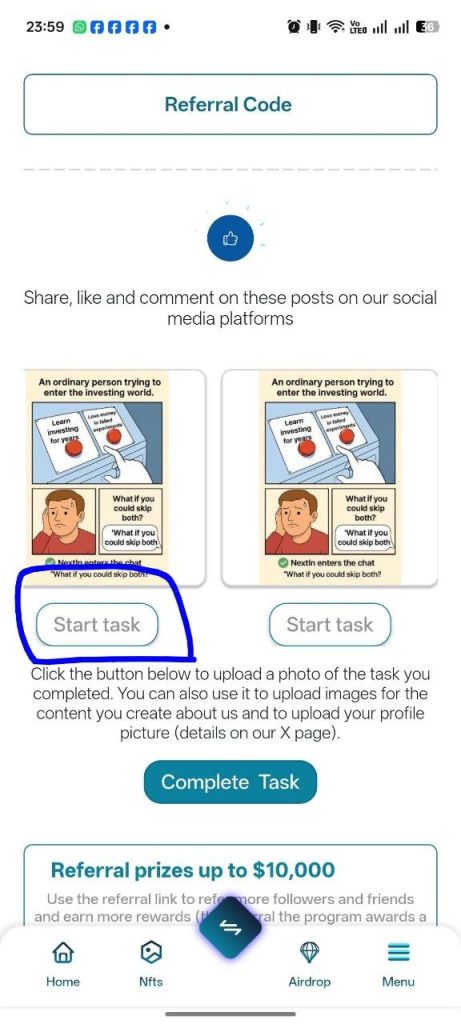
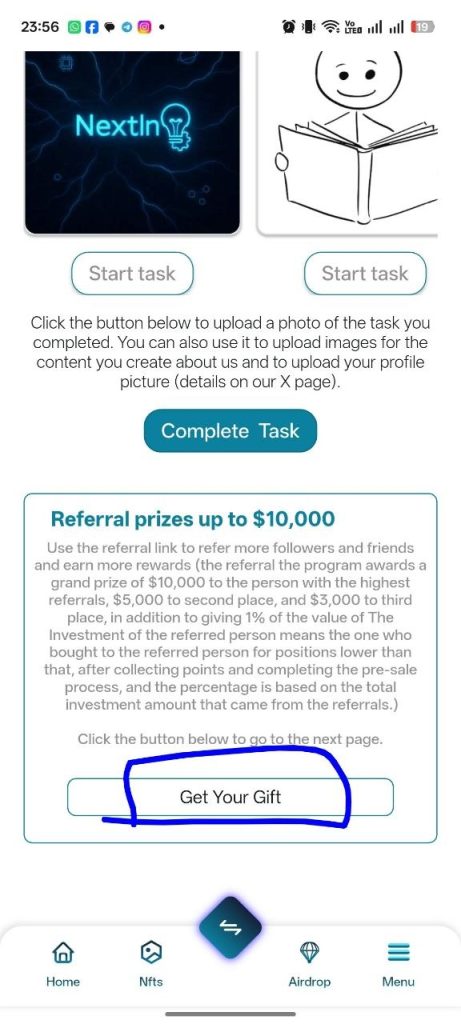
Interact with our posts, which will be updated within this section on the Airdrop page in the app. Tap the “Start Task” button to open the post on its original platform.
Once opened, perform an action such as liking, commenting, or sharing the post, depending on the options available on that platform. Make sure to take a screenshot of your interaction as proof and submit it to the admin for review. After verification, your task will be approved and your points will be awarded.
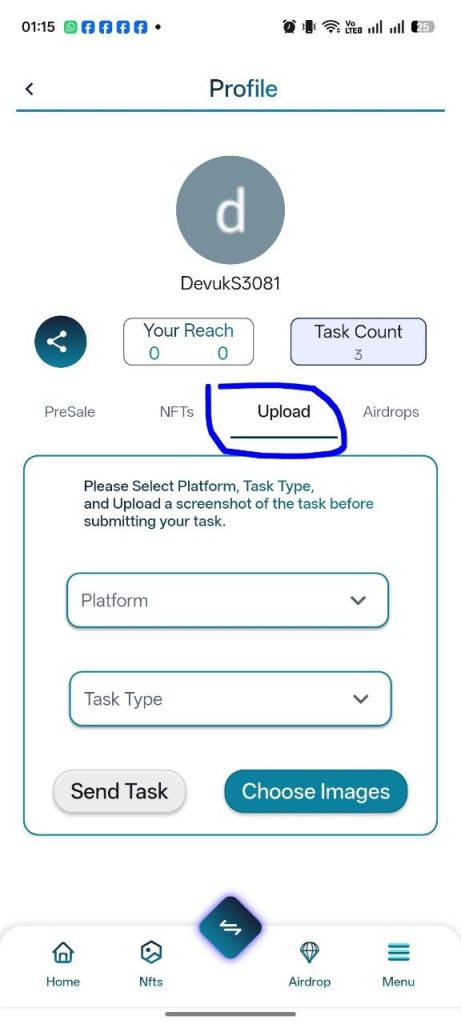
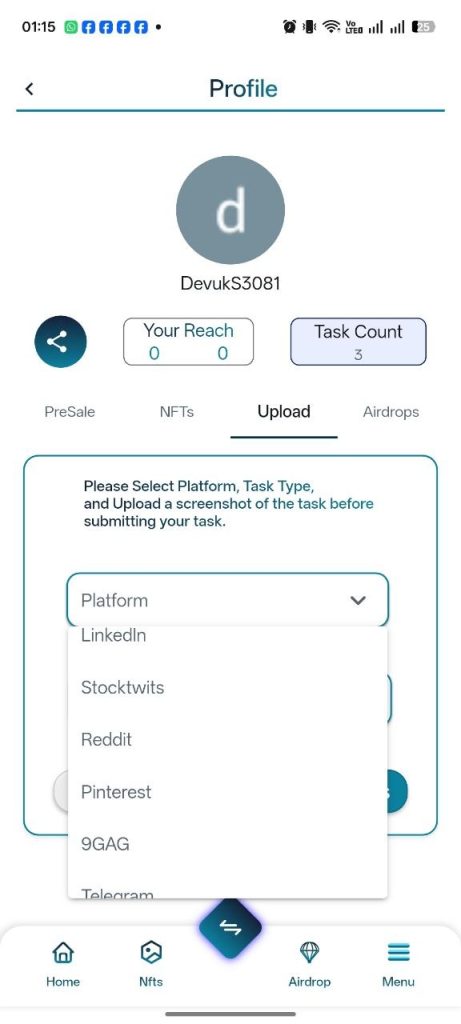
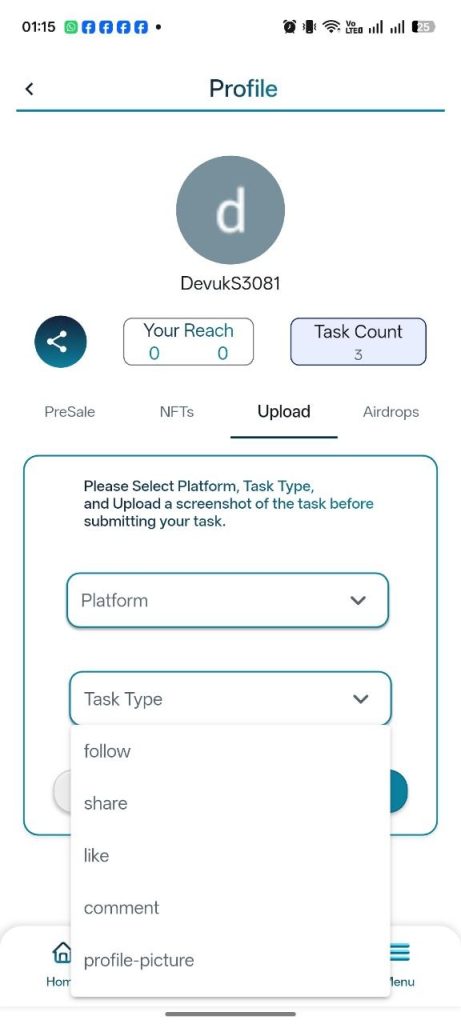
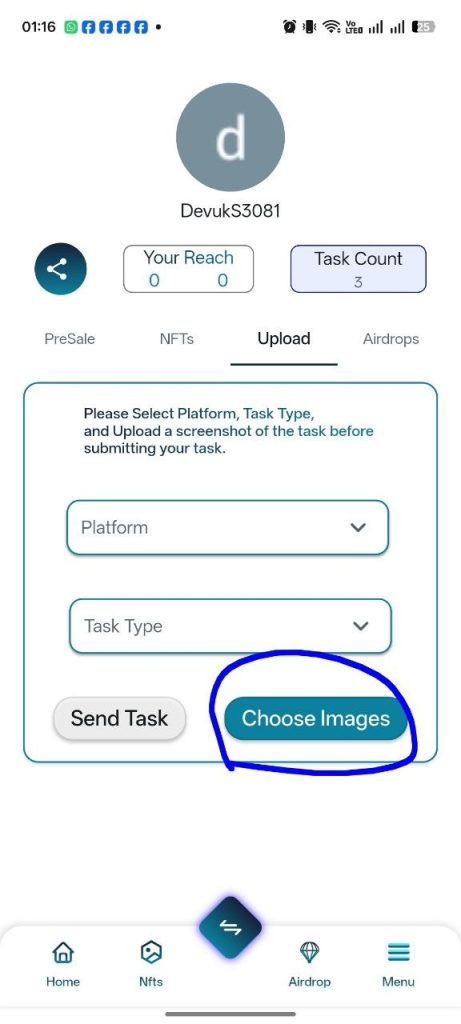
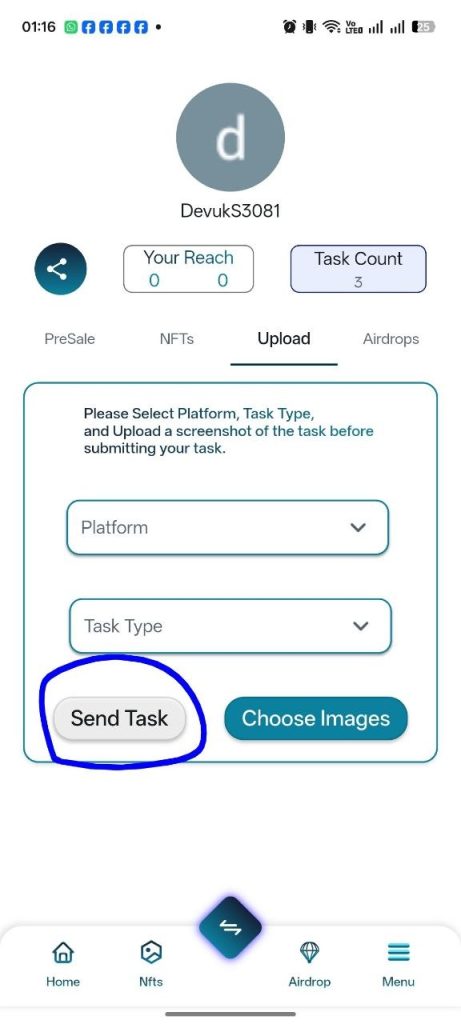
To upload your proof images:
Go to your profile by tapping the “Complete Task” button on the Airdrop page, or by clicking your profile picture from the home page or the menu. Then navigate to the “Upload” tab. Select the platform where the task was completed from the dropdown menu, and choose the task type from the second dropdown.
Next, tap “Choose Image” and select the screenshot you want to upload. After that, click “Done”, then press the “Submit Task” button to send your proof to the admin for review and approval. Once verified, your points will be awarded.
Upon completing and approving any task, you will notice that a checkmark is displayed on the corresponding number at the top of the Airdrop page, as shown in the image.
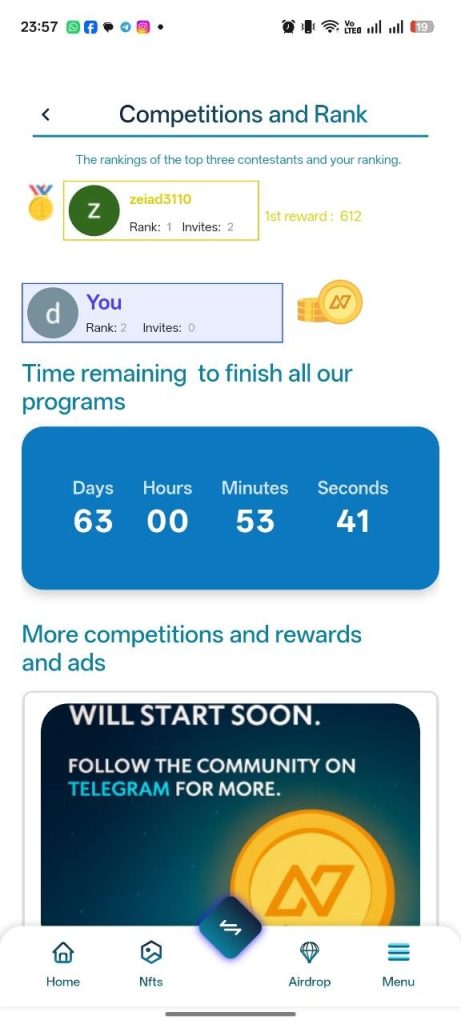
You can track your ranking in the referral competition, as well as the top three participants, by tapping the “Get Your Gift” button at the bottom of the Airdrop page. This will take you to a page where you can view your ranking and the top three positions, which you can reach based on your referral performance.
You will also find a timer indicating the duration and end of our program. Stay tuned in the community for any updates—any changes or suspension of the program will be announced, and you will also receive in-app notifications.
In addition, any important announcements or promotions will be displayed in the Ads section on this page.